
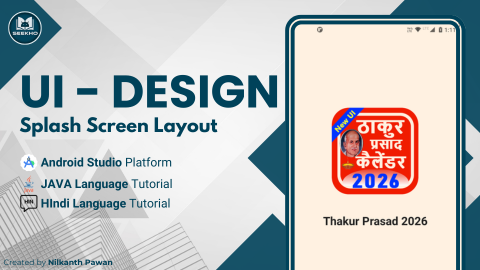
In this blog, we are going to create/make the latest code with UI Design layout for the Splash Screen in Android Studio. So, if you are an Android developer, then you must follow the steps below:
- Create a Constraint Layout.
- Create an ImageView Layout.
- Create an App Name Layout.
- Create a ProgressBar Layout.
- Create a Developer Name Layout.
Explain/Create a Constraint Layout:
Under this constraint layout, we have to create multiple layouts to make a complete splash screen, so we need to provide code to make it easier to create this project. The code is given below.
android:id=”@+id/splashScreen”
android:layout_width=”match_parent”
android:layout_height=”match_parent”
android:background=”@color/white”
android:fitsSystemWindows=”true”
Explain/Create an ImageView Layout:
In this layout, we have to create an ImageView that will help to show our app logo/icon for Android Users codes are given below.
android:contentDescription=”@string/app_name”
android:elevation=”2dp”
android:src=”@drawable/icon”
app:layout_constraintBottom_toBottomOf=”parent”
app:layout_constraintEnd_toEndOf=”parent”
app:layout_constraintHorizontal_bias=”0.496″
app:layout_constraintStart_toStartOf=”parent”
app:layout_constraintTop_toTopOf=”parent”
app:layout_constraintVertical_bias=”0.254″
Explain/Create an App Name Layout:
In this layout, we have to create a TextView that will help to show our app name for Android Users codes are given below.
android:elevation=”2dp”
android:text=”@string/custom_app_name”
android:textColor=”@color/black”
android:textSize=”28sp”
android:textStyle=”bold”
app:layout_constraintBottom_toBottomOf=”parent”
app:layout_constraintEnd_toEndOf=”parent”
app:layout_constraintStart_toStartOf=”parent”
app:layout_constraintTop_toBottomOf=”@+id/logo”
app:layout_constraintVertical_bias=”0.1″
Explain/Create a ProgressBar Layout.
In this layout, we have to create a ProgressBar that will help to load some ads and some features for Android Users codes are given below.
android:elevation=”2dp”
android:indeterminateTint=”@color/black”
app:layout_constraintBottom_toTopOf=”@+id/mainDevelopedName”
app:layout_constraintEnd_toEndOf=”parent”
app:layout_constraintStart_toStartOf=”parent”
app:layout_constraintTop_toBottomOf=”@+id/mainAppName”
Explain/Create a Developer Name Layout:
In this layout, we have to create a TextView that will help to show our app developer for Android Users codes are given below.
android:elevation=”2dp”
android:text=”@string/developed_by”
android:textColor=”@color/black”
android:textSize=”12sp”
app:layout_constraintBottom_toBottomOf=”parent”
app:layout_constraintEnd_toEndOf=”parent”
app:layout_constraintStart_toStartOf=”parent”
app:layout_constraintTop_toBottomOf=”@+id/logo”
app:layout_constraintVertical_bias=”1″
Thank You!