
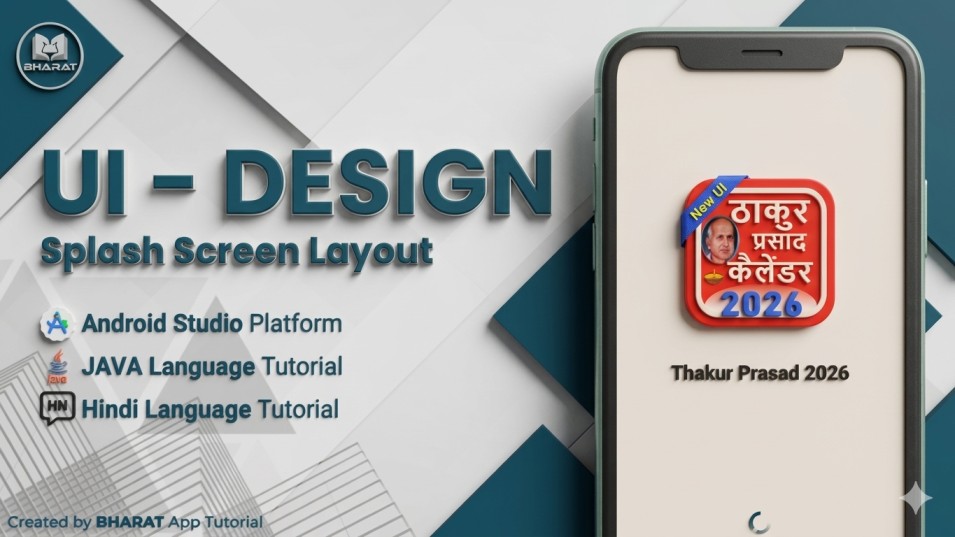
In this blog, we have to create a splash screen to show details in an arranged view in Android Studio. We will provide the latest code UI/UX layout for the user, reliable for the Android App.
Before creating the project, we have provided some assets to support its development.
- Implement the App Color Code in the “colors.xml” file.
Here, we have to insert the color code to customise your application project.
<color name="purple_200">#0033ff</color>
    <color name="purple_500">#0033ff</color>
    <color name="purple_700">#0033ff</color>
    <color name="teal_200">#0033ff</color>
    <color name="teal_700">#0033ff</color>
    <color name="black">#FF000000</color>
    <color name="white">#FFFFFF</color>
    <color name="background">#fff1e1</color>
    <color name="green">#10874C</color>
    <color name="orange">#FA7132</color>
    <color name="blue">#033BE3</color>
    <color name="green_light">#D5FFEA</color>
    <color name="orange_light">#FFEBE6</color>
    <color name="dynamic_artwork">#505958</color>
- Replace “Action Bar” with “No Action Bar”.
<style name="Theme.ThakurPrasad2026" parent="Theme.MaterialComponents.DayNight.NoActionBar">
        <!-- Primary brand color. -->
        <item name="colorPrimary">@color/purple_500</item>
        <item name="colorPrimaryVariant">@color/purple_700</item>
        <item name="colorOnPrimary">@color/white</item>
        <!-- Secondary brand color. -->
        <item name="colorSecondary">@color/teal_200</item>
        <item name="colorSecondaryVariant">@color/teal_700</item>
        <item name="colorOnSecondary">@color/black</item>
        <!-- Status bar color. -->
        <item name="android:statusBarColor">?attr/colorPrimaryVariant</item>
        <!-- Customize your theme here. -->
    </style>
- Please import the “string.xml” code below.
We need to import some important text string code into a string.xml file.
<string name="developed_by">Developed By: <b>BHARAT</b> App Tutorial</string>
Insert assets into the Splash Screen UI Layout.
We need a LOGO and Text Image for this project. So, download Assets now.
Create a “activity_main.xml” UI Design Layout.
<?xml version="1.0" encoding="utf-8"?>
<androidx.constraintlayout.widget.ConstraintLayout xmlns:android="http://schemas.android.com/apk/res/android"
    xmlns:app="http://schemas.android.com/apk/res-auto"
    xmlns:tools="http://schemas.android.com/tools"
    android:id="@+id/mainActivity"
    android:layout_width="match_parent"
    android:layout_height="match_parent"
    android:background="@color/background"
    android:fitsSystemWindows="true"
    tools:context=".MainActivity">

    <ImageView
        android:id="@+id/logo"
        android:layout_width="210dp"
        android:layout_height="210dp"
        android:contentDescription="@string/app_name"
        android:elevation="2dp"
        android:src="@drawable/icon"
        app:layout_constraintBottom_toBottomOf="parent"
        app:layout_constraintEnd_toEndOf="parent"
        app:layout_constraintHorizontal_bias="0.496"
        app:layout_constraintStart_toStartOf="parent"
        app:layout_constraintTop_toTopOf="parent"
        app:layout_constraintVertical_bias="0.254" />

    <ImageView
        android:id="@+id/appName"
        android:layout_width="wrap_content"
        android:layout_height="36dp"
        android:contentDescription="@string/app_name"
        android:src="@drawable/text"
        app:layout_constraintBottom_toTopOf="@+id/bottomText"
        app:layout_constraintEnd_toEndOf="parent"
        app:layout_constraintStart_toStartOf="parent"
        app:layout_constraintTop_toBottomOf="@+id/logo"
        app:layout_constraintVertical_bias="0.1" />

    <ProgressBar
        android:id="@+id/progressBar"
        style="?android:attr/progressBarStyleHorizontal"
        android:layout_width="match_parent"
        android:layout_height="10dp"
        android:layout_marginStart="82dp"
        android:layout_marginEnd="82dp"
        android:indeterminate="true"
        android:indeterminateTint="@color/purple_200"
        android:max="100"
        android:progress="0"
        app:layout_constraintBottom_toTopOf="@+id/bottomText"
        app:layout_constraintEnd_toEndOf="parent"
        app:layout_constraintStart_toStartOf="parent"
        app:layout_constraintTop_toBottomOf="@+id/appName" />

    <TextView
        android:id="@+id/bottomText"
        android:layout_width="wrap_content"
        android:layout_height="wrap_content"
        android:elevation="2dp"
        android:text="@string/developed_by"
        android:textColor="@color/black"
        android:textSize="12sp"
        app:layout_constraintBottom_toBottomOf="parent"
        app:layout_constraintEnd_toEndOf="parent"
        app:layout_constraintStart_toStartOf="parent"
        app:layout_constraintTop_toBottomOf="@+id/logo"
        app:layout_constraintVertical_bias="1" />

</androidx.constraintlayout.widget.ConstraintLayout>
Implement a “MainActivity.java” File.
Implement Variable Code in the Java File.
ImageView imageView = findViewById(R.id.logo);
        ImageView imageView01 = findViewById(R.id.appName);
        ProgressBar progressBar = findViewById(R.id.progressBar);
        TextView textView = findViewById(R.id.bottomText);
 int splashTimeOut = 3500;
        new Handler().postDelayed(() -> {
            Intent intent = new Intent(MainActivity.this, HomeActivity.class);
            startActivity(intent);
            finish();
        }, splashTimeOut);
Animation animation = AnimationUtils.loadAnimation(this, R.anim.splash_screen_animation);
        imageView.startAnimation(animation);
        imageView01.startAnimation(animation);
        progressBar.startAnimation(animation);
        textView.startAnimation(animation);
Output Result in Image View Given Below.
……………….Thank You……………….