
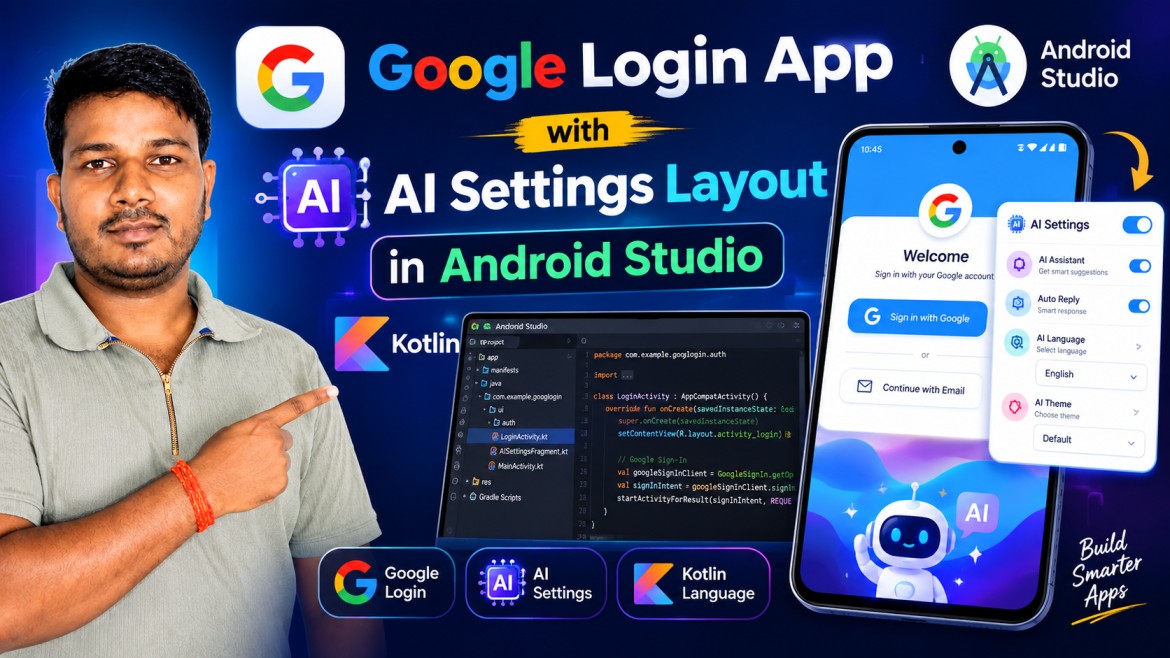
Generate a prompt for a Google Login App with a Settings Layout [Change Language, Dark Mode, User Layout, Terms and Conditions, Disclaimer, Log Out] using an XML layout, the latest Material UI Design, in Kotlin in Android Studio.
# AI DEVELOPMENT PROMPT — GOOGLE LOGIN APP WITH SETTINGS

Create a complete, production-ready **Android application in Kotlin using Android Studio**, with **XML layouts** and the latest **Material Design / Material 3 UI** components.

The app should implement a modern **Google Login authentication system** and a professional **Settings screen**.

## 1. Technology Requirements

* Android Studio latest stable version
* Kotlin
* XML layouts — do NOT use Jetpack Compose
* Material 3 / latest Material Components
* Firebase Authentication
* Google Sign-In / Google Identity authentication using the current recommended Firebase-compatible approach
* AndroidX
* ViewBinding
* Gradle Kotlin DSL
* Minimum SDK: 23 or higher
* Target the latest stable Android SDK
* Edge-to-edge support
* Light and Dark themes
* Proper handling of Android back navigation
* Follow modern Android architecture and security practices

Use clean, maintainable, modular Kotlin code.

---

# 2. App Flow

Create the following screens:

### Screen 1 — Login Activity

Design a premium, simple Google Login screen.

UI:

* App logo/icon at the top
* App name
* Welcome heading:
  **"Welcome Back!"**
* Subtitle:
  **"Sign in to continue"**
* Large Material 3 Google Sign-In button
* Loading indicator while authentication is processing
* Error message area using Material components

The login screen should have a clean **white/light background** in Light Mode.

Use proper spacing, rounded corners, typography, and accessibility.

When the user taps **Sign in with Google**:

1. Open Google authentication.
2. Allow the user to select a Google account.
3. Authenticate the user with Firebase Authentication.
4. Show a loading state.
5. Handle success and failure properly.
6. On successful authentication, open `MainActivity`.
7. Save/maintain the authenticated session.
8. Do not ask the user to log in again while a valid Firebase session exists.

Do not store the user's Google password or sensitive authentication credentials locally.

---

# 3. Main Activity

After successful login, open a modern dashboard.

Display:

* User profile image
* User display name
* User email
* Welcome message
* Material 3 Top App Bar
* Settings icon in the toolbar

Example:

**"Hello, [User Name]"**

Tapping the Settings icon should open:

`SettingsActivity`

Use circular profile-image styling with proper fallback handling.

---

# 4. Settings Activity

Create a professional Material 3 Settings screen using XML.

Title:

**Settings**

Use a `ScrollView` or `NestedScrollView` so the screen works correctly on smaller devices.

Organize settings into logical sections.

## ACCOUNT

### User Layout

Create a settings item showing:

* User profile image
* User name
* User email
* Account arrow icon

When clicked, open a user-profile screen/dialog containing:

* Profile photo
* Name
* Email
* Google account information
* Firebase UID if appropriate for an account/debug section
* Back button

Do not expose sensitive authentication information.

---

# 5. APP PREFERENCES

### Change Language

Create a clickable Material settings item:

**Change Language**

Subtitle:

**English**

When clicked, show a Material 3 dialog/bottom sheet containing language choices.

Include:

* English
* Hindi

Use radio buttons or another appropriate Material selection component.

Save the selected language locally using `DataStore Preferences` or another modern persistent preference mechanism.

When the language changes, update the application's displayed strings appropriately.

Use Android string resources:

* `values/strings.xml`
* `values-hi/strings.xml`

Do not hard-code UI strings inside Kotlin code.

---

# 6. Dark Mode

Create a settings row:

**Dark Mode**

Subtitle:

**Use dark theme**

Include a Material 3 `SwitchMaterial` / appropriate Material switch.

Requirements:

* OFF = Light Mode
* ON = Dark Mode
* Save the preference using DataStore
* Restore the preference when the app starts
* Apply the theme without crashing or recreating incorrectly
* Respect modern Android theme behavior

Create appropriate Light and Dark color resources.

The Dark Mode design must remain readable and visually polished.

---

# 7. TERMS AND CONDITIONS

Create a clickable settings item:

**Terms and Conditions**

When clicked, open:

`TermsActivity`

Create a professional Terms and Conditions page containing sections such as:

1. Introduction
2. Acceptance of Terms
3. User Accounts
4. Google Authentication
5. User Responsibilities
6. Privacy and Data
7. Third-Party Services
8. Intellectual Property
9. Limitation of Liability
10. Changes to Terms
11. Contact Information

Use XML and Material 3 components.

The content should be easy to read with proper typography and spacing.

Keep the legal text as editable placeholder content so it can later be replaced with the application's actual legal terms.

---

# 8. DISCLAIMER

Create a clickable settings item:

**Disclaimer**

When clicked, open:

`DisclaimerActivity`

Include sections such as:

* General Information
* Accuracy of Information
* Third-Party Services
* Google/Firebase Services
* User Responsibility
* Limitation of Liability
* Changes to Disclaimer

Clearly explain that the final disclaimer should be customized according to the actual application and business requirements.

---

# 9. LOG OUT

At the bottom of the Settings screen create a prominent:

**Log Out**

button.

Use a Material 3 outlined or text button with an appropriate warning/error visual treatment.

When tapped:

1. Display a confirmation dialog.
2. Message:
   **"Are you sure you want to log out?"**
3. Buttons:

   * Cancel
   * Log Out
4. If the user confirms:

   * Sign out from Firebase Authentication.
   * Sign out from the Google authentication provider if required by the selected authentication implementation.
   * Clear appropriate local session/preferences if necessary.
   * Navigate back to `LoginActivity`.
   * Clear the Activity back stack so the user cannot return to authenticated screens using the Back button.

---

# 10. XML Layout Structure

Use separate XML files for each screen.

Suggested structure:

```text
app/
 └── src/
     └── main/
         ├── java/com/example/app/
         │   ├── LoginActivity.kt
         │   ├── MainActivity.kt
         │   ├── SettingsActivity.kt
         │   ├── UserProfileActivity.kt
         │   ├── TermsActivity.kt
         │   ├── DisclaimerActivity.kt
         │   └── utils/
         │       ├── ThemeManager.kt
         │       └── LanguageManager.kt
         │
         ├── res/
         │   ├── layout/
         │   │   ├── activity_login.xml
         │   │   ├── activity_main.xml
         │   │   ├── activity_settings.xml
         │   │   ├── activity_user_profile.xml
         │   │   ├── activity_terms.xml
         │   │   └── activity_disclaimer.xml
         │   │
         │   ├── drawable/
         │   ├── mipmap/
         │   ├── values/
         │   │   ├── colors.xml
         │   │   ├── strings.xml
         │   │   └── themes.xml
         │   └── values-night/
         │       └── themes.xml
         │
         └── AndroidManifest.xml
```

Use `ViewBinding` instead of repeated `findViewById()` calls.

---

# 11. Settings UI Design

Create each setting as a modern Material 3 list item.

Each row should contain:

* Leading icon
* Title
* Optional subtitle
* Trailing arrow or switch
* Proper touch/ripple effect

Recommended settings order:

### Account

* User Layout

### Preferences

* Change Language
* Dark Mode

### Information

* Terms and Conditions
* Disclaimer

### Account Actions

* Log Out

Use rounded Material cards or appropriately styled preference containers with subtle elevation and spacing.

---

# 12. Visual Design

Design language:

* Modern Material 3
* Minimal
* Clean
* Professional
* Premium
* Responsive
* White/light background for Light Mode
* Proper Dark Mode colors
* Rounded corners
* Consistent iconography
* Proper Material typography
* Balanced margins and padding
* High accessibility contrast
* Touch targets of at least approximately 48dp

Avoid:

* Old-fashioned UI
* Excessive gradients
* Excessive shadows
* Crowded layouts
* Tiny text
* Hard-coded colors throughout layouts

Centralize colors and dimensions in resources.

---

# 13. Firebase Authentication

Configure Firebase Authentication correctly.

Implement:

* Firebase Authentication
* Google provider
* Authentication state checking
* Sign-in
* Sign-out
* Error handling
* Loading states
* Session restoration

Use the currently recommended Google authentication integration for Android/Firebase rather than deprecated authentication APIs.

Explain where the developer needs to add:

* `google-services.json`
* Firebase project configuration
* SHA-1/SHA-256 fingerprints
* Google authentication configuration
* Firebase Authentication Google provider

Never place private API secrets or credentials directly inside source code.

---

# 14. Error Handling

Handle common cases:

* No internet connection
* User cancels Google login
* Authentication failure
* Firebase failure
* Account selection failure
* Network timeout
* Sign-out failure

Show user-friendly Material Snackbar/Dialog messages.

Do not expose raw exception stack traces to users.

Provide useful Logcat messages for debugging.

---

# 15. Loading State

During Google authentication:

* Disable the login button temporarily.
* Show a Material progress indicator.
* Prevent duplicate login requests.
* Restore the button if authentication fails.

Example:

**Signing in...**

After successful login:

**Login successful**

Then navigate to the dashboard.

---

# 16. DataStore

Use modern `DataStore Preferences` for local preferences such as:

```text
selected_language
dark_mode_enabled
```

Do not use SharedPreferences unless there is a specific compatibility reason.

Create a clean preference manager/repository.

---

# 17. Accessibility

Make the application accessible.

Include:

* Content descriptions for icons
* Proper text contrast
* Minimum touch targets
* Screen-reader-friendly labels
* Logical focus order
* Accessible dialogs
* Scalable text support

---

# 18. Navigation and Back Stack

Implement proper navigation.

Expected flow:

```text
LoginActivity
      ↓
MainActivity
      ↓
SettingsActivity
      ↓
UserProfileActivity
TermsActivity
DisclaimerActivity
```

If the user is already authenticated:

```text
App Launch
    ↓
Firebase Auth Check
    ↓
MainActivity
```

If the user is not authenticated:

```text
App Launch
    ↓
LoginActivity
```

After logout:

```text
Logout
   ↓
LoginActivity
   ↓
Clear Back Stack
```

---

# 19. Code Quality

Follow modern Kotlin coding practices.

Requirements:

* Null safety
* Coroutines where appropriate
* Lifecycle-aware code
* Avoid memory leaks
* Avoid deprecated APIs
* Meaningful variable names
* Reusable helper functions
* Clean architecture principles where appropriate
* No unnecessary libraries
* No duplicate code
* Proper comments for important authentication logic

---

# 20. Deliverables

Generate the complete implementation, including:

1. `build.gradle.kts`
2. Project-level Gradle configuration
3. `AndroidManifest.xml`
4. All Kotlin Activity files
5. XML layouts
6. Material 3 theme
7. Light/Dark theme resources
8. Color resources
9. String resources
10. Hindi string resources
11. DataStore implementation
12. Firebase Authentication implementation
13. Google Login implementation
14. Logout implementation
15. Settings implementation
16. Terms and Conditions screen
17. Disclaimer screen
18. User Profile screen
19. Required drawable/vector resources
20. Firebase setup instructions

Make sure the generated project **compiles successfully in the latest stable Android Studio**.

Do not leave incomplete methods, pseudocode, TODO authentication logic, or missing XML IDs.

Before presenting the final code, verify that:

* All IDs referenced from Kotlin exist in XML.
* All Activities are declared in the manifest.
* All required dependencies are included.
* Firebase authentication flow is complete.
* Google login works using the current recommended approach.
* Dark Mode works.
* Language selection works.
* Logout clears the authentication flow correctly.
* The application handles configuration changes safely.
* No deprecated Google Sign-In implementation is used.

The final result should look like a **modern, polished production Android application**, not a basic tutorial/demo UI.