
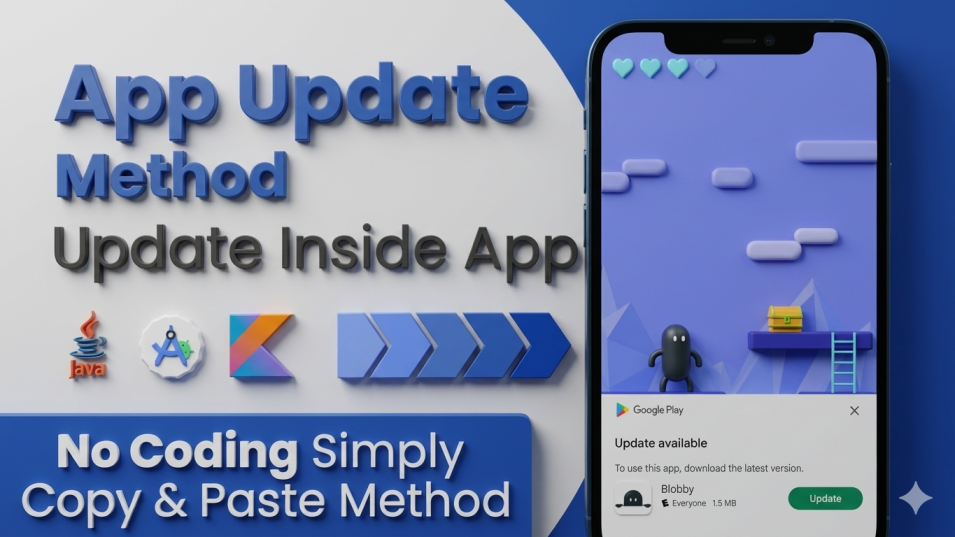
In this blog, we have to create an App Update Method to update the inside App. So, we have to create an auto App Update Method in Android Studio.
Before creating the project, we have provided some assets to support its development.
Implement the App Color Code in the “colors.xml” file.
Here, we have to insert the color code to customise your application project.
<color name=”purple_200″>#FFBB86FC</color>
<color name=”purple_500″>#FF6200EE</color>
<color name=”purple_700″>#FF3700B3</color>
<color name=”teal_200″>#FF03DAC5</color>
<color name=”teal_700″>#FF018786</color>
<color name=”black”>#FF000000</color>
<color name=”white”>#FFFFFFFF</color>
Replace “Action Bar” with “No Action Bar”.
<style name=”Theme.ThakurPrasad2026″ parent=”Theme.MaterialComponents.DayNight.NoActionBar”>
<!– Primary brand color. –>
<item name=”colorPrimary”>@color/purple_500</item>
<item name=”colorPrimaryVariant”>@color/purple_700</item>
<item name=”colorOnPrimary”>@color/white</item>
<!– Secondary brand color. –>
<item name=”colorSecondary”>@color/teal_200</item>
<item name=”colorSecondaryVariant”>@color/teal_700</item>
<item name=”colorOnSecondary”>@color/black</item>
<!– Status bar color. –>
<item name=”android:statusBarColor”>?attr/colorPrimaryVariant</item>
<!– Customize your theme here. –>
</style>
Implement the UI design layout code “activity_main.xml” for demo purposes, given below.
<?xml version="1.0" encoding="utf-8"?>
<androidx.constraintlayout.widget.ConstraintLayout xmlns:android="http://schemas.android.com/apk/res/android"
    xmlns:app="http://schemas.android.com/apk/res-auto"
    xmlns:tools="http://schemas.android.com/tools"
    android:id="@+id/main"
    android:layout_width="match_parent"
    android:layout_height="match_parent"
    android:background="@color/purple_700"
    tools:context=".MainActivity">

    <androidx.appcompat.widget.Toolbar
        android:layout_width="match_parent"
        android:layout_height="?attr/actionBarSize"
        android:background="@color/purple_700"
        app:layout_constraintEnd_toEndOf="parent"
        app:layout_constraintStart_toStartOf="parent"
        app:layout_constraintTop_toTopOf="parent">

        <RelativeLayout
            android:layout_width="match_parent"
            android:layout_height="match_parent">

            <TextView
                android:layout_width="wrap_content"
                android:layout_height="wrap_content"
                android:layout_centerInParent="true"
                android:text="@string/app_name"
                android:textAppearance="@style/TextAppearance.AppCompat.Large"
                android:textColor="@color/white"
                android:textStyle="bold" />

        </RelativeLayout>

    </androidx.appcompat.widget.Toolbar>

    <TextView
        android:layout_width="wrap_content"
        android:layout_height="wrap_content"
        android:text="Hello World!"
        android:textColor="@color/white"
        app:layout_constraintBottom_toBottomOf="parent"
        app:layout_constraintLeft_toLeftOf="parent"
        app:layout_constraintRight_toRightOf="parent"
        app:layout_constraintTop_toTopOf="parent" />

</androidx.constraintlayout.widget.ConstraintLayout>
Implement the Dependency to develop the App Update Method given below.
// Update Play Core API Dependency
    implementation("com.google.android.play:app-update:2.1.0")
Implement the Code in the “MainActivity.Java” file given below.
Some Variable values are given.
private AppUpdateManager mAppUpdateManager;
    private static final int RC_APP_UPDATE = 100;
mAppUpdateManager = AppUpdateManagerFactory.create(this);
        mAppUpdateManager.getAppUpdateInfo().addOnSuccessListener(appUpdateInfo -> {
            if (appUpdateInfo.updateAvailability() == UpdateAvailability.UPDATE_AVAILABLE &&
                    appUpdateInfo.isUpdateTypeAllowed(AppUpdateType.IMMEDIATE)) {
                try {
                    mAppUpdateManager.startUpdateFlowForResult(appUpdateInfo, AppUpdateType.IMMEDIATE, MainActivity.this
                            , RC_APP_UPDATE);
                } catch (IntentSender.SendIntentException e) {
                    e.printStackTrace();
                }
            }

        });
private final InstallStateUpdatedListener installStateUpdatedListener = installState -> {
        if (installState.installStatus() == InstallStatus.DOWNLOADED) {
            showCompleteUpdate();
        }

    };
 private void showCompleteUpdate() {
        Snackbar snackbar = Snackbar.make(findViewById(android.R.id.content), "New App is Ready!",
                Snackbar.LENGTH_INDEFINITE);
        snackbar.setAction("INSTALL", v -> mAppUpdateManager.completeUpdate());
        snackbar.show();
    }
  @Override
    protected void onActivityResult(int requestCode, int resultCode, @Nullable Intent data) {
        if (requestCode == RC_APP_UPDATE && resultCode != RESULT_OK) {
            Toast.makeText(this, "CANCEL", Toast.LENGTH_SHORT).show();
        }
        super.onActivityResult(requestCode, resultCode, data);
    }
  @Override
    protected void onStop() {
        super.onStop();
    }
  @Override
    protected void onResume() {
        super.onResume();
        mAppUpdateManager.getAppUpdateInfo().addOnSuccessListener(appUpdateInfo -> {
            if (appUpdateInfo.updateAvailability() == UpdateAvailability.DEVELOPER_TRIGGERED_UPDATE_IN_PROGRESS) {
                try {
                    mAppUpdateManager.startUpdateFlowForResult(appUpdateInfo, AppUpdateType.IMMEDIATE, MainActivity.this
                            , RC_APP_UPDATE);
                } catch (IntentSender.SendIntentException e) {
                    e.printStackTrace();
                }
            }

        });
    }
……………….Thank You……………….